
Run every shift from one place.
CrewDeck is scheduling, time off and a time clock for restaurants and cafés. Managers build and publish the week. Your team checks their shifts and clocks in from their phones or a shared tablet.
Sign in or create an account See how it works
Designed for Ontario restaurants.
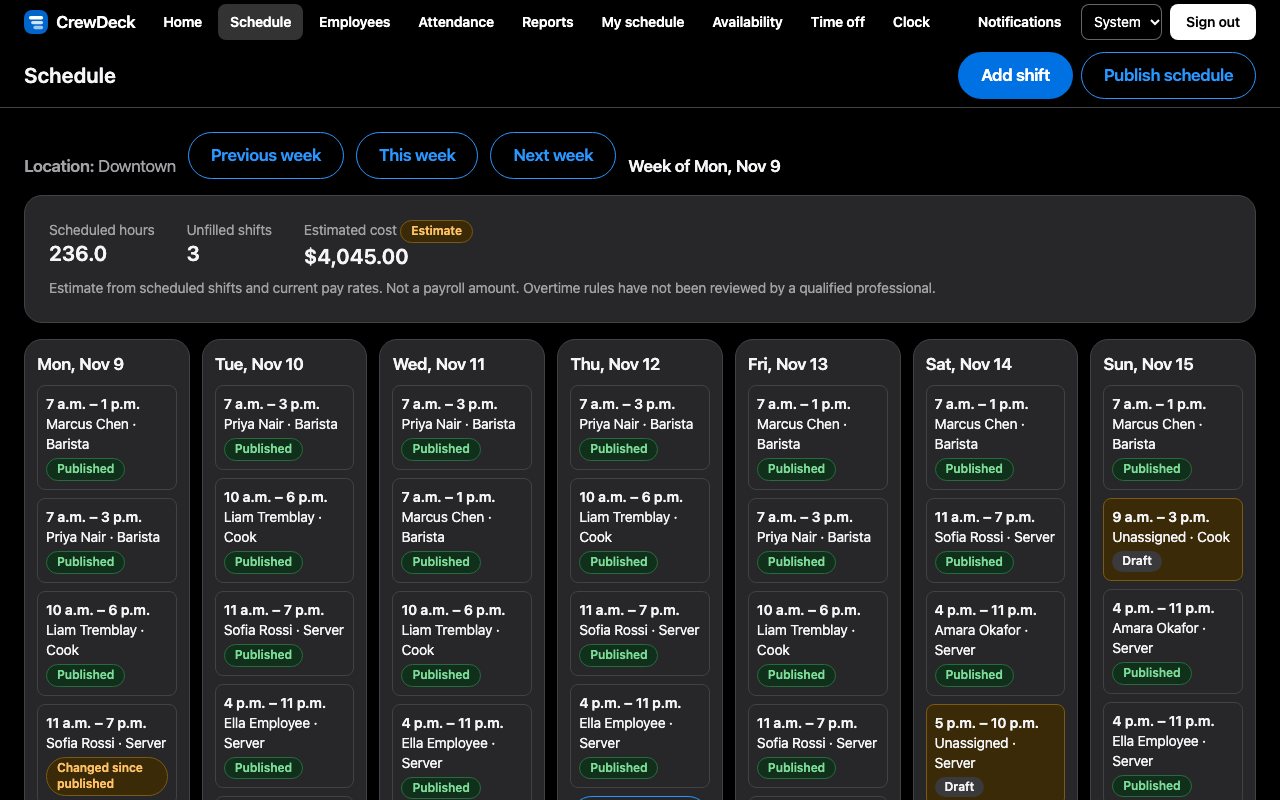
Plan the week with fewer surprises.
Everything a manager needs to put a schedule together, publish it, and see what actually happened.
-
Draft, then publish
Build shifts at your own pace. Your team only sees what you have published, and a change to a published shift is clearly marked until you publish it again.
-
Warnings before you publish
Overlapping shifts, approved time off, availability and positions are checked for you. Unfilled shifts stand out so gaps are easy to spot.
-
Time off and availability
Staff request time off and say when they can work. You approve or decline, with a reason if you like, and the schedule reflects it.
-
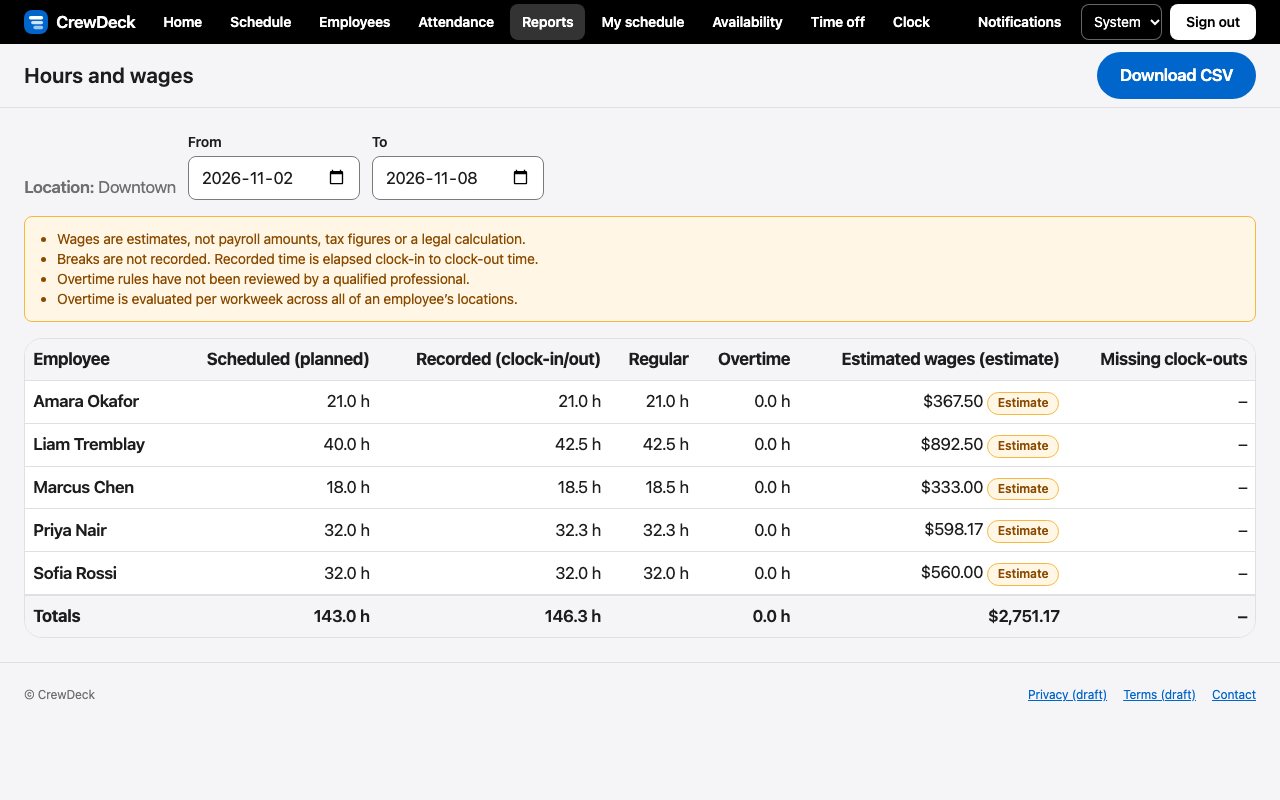
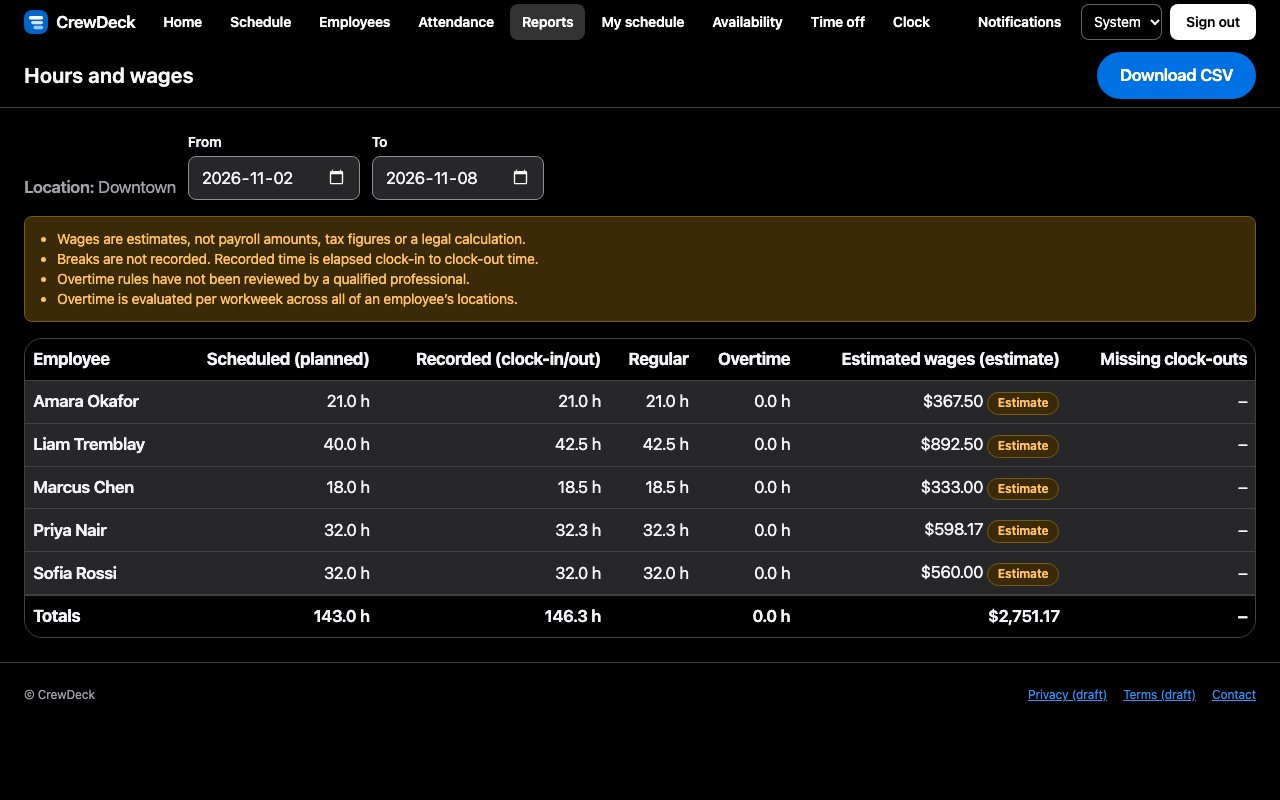
Hours and wage estimates
Compare scheduled and recorded hours for each location, see estimated wages, and export a CSV for your own payroll process.
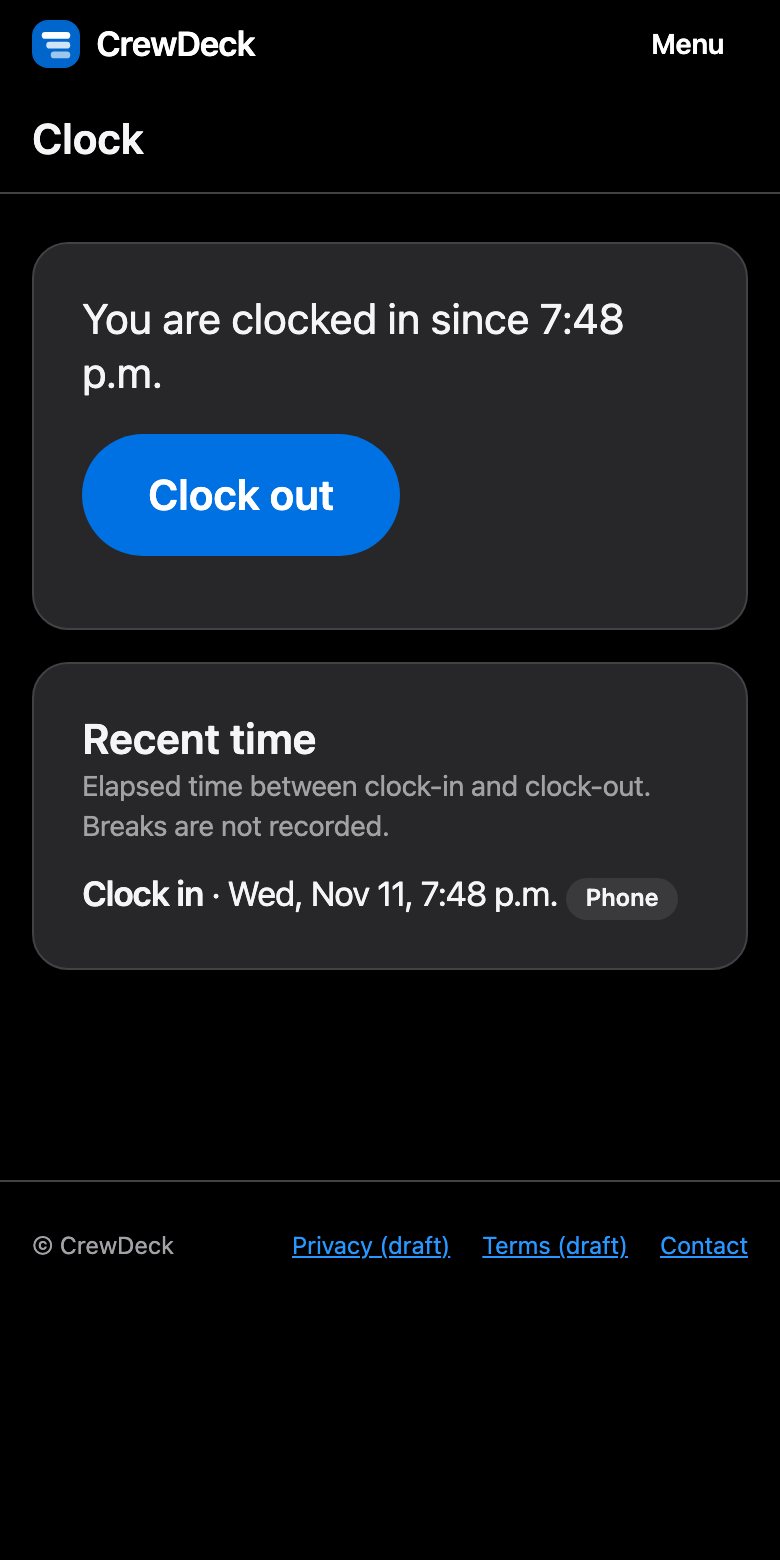
Your team always knows where they stand.
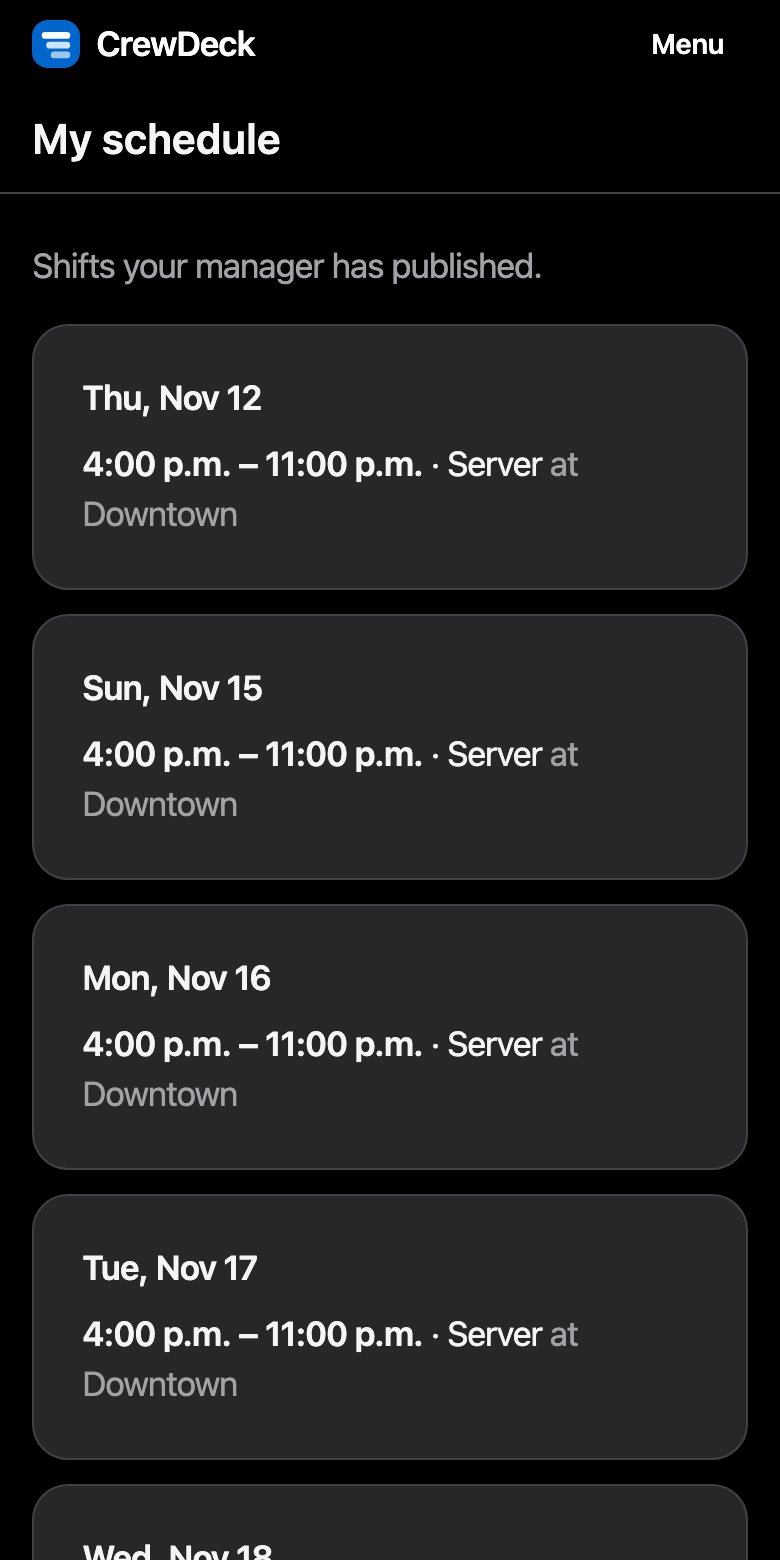
- Their schedule, on their phone. Published shifts for the next two weeks, with the location and time zone.
- Clock in and out your way. From a personal phone, or at a shared in-store tablet with a personal PIN.
- Availability and time off. Staff manage their own requests and see the answer.
- Updates that matter. Notifications when a schedule changes or a request is decided.
How it works
-
Step 1
Set up your business
Create an account, name your business and your first location, and add more locations when you need them.
-
Step 2
Invite your team
Add employees and send each one a single-use invitation. Give managers access to just their own locations.
-
Step 3
Schedule, clock, review
Publish the week, let staff clock in, then review hours and export what you need.
Careful with people's information.
- Hosted in Canada (AWS Canada Central).
- Pay rates are visible only to the people you allow.
- If you turn on the location check for phone clock-ins, location is read once when someone clocks in or out. Only the distance is kept, and nothing is tracked in the background.
- Corrections to time records need a reason, the original is kept, and changes are logged.
- Each manager sees only their own locations.
What CrewDeck doesn't do.
- It doesn't run payroll, pay anyone, or file taxes.
- Wage figures are estimates to help you plan, not payroll amounts or legal advice.
- It doesn't record breaks yet, so recorded time is the time between clocking in and out.
Questions
Can my staff use their own phones?
Yes. They sign in on any modern phone browser to see their schedule, request time off and clock in. For places where people prefer not to use a phone, a shared tablet at the counter works with a personal PIN.
Does CrewDeck handle payroll?
No. CrewDeck shows hours and estimated wages and exports a CSV, so you can use the numbers in the payroll process you already have.
Can I run more than one location?
Yes. One business can have several locations, with managers limited to the locations you choose and employees who work at more than one.
Is it available in French?
Not yet. CrewDeck is in English today, and French is planned.
Where do I start?
Create an account, set up your business, and invite your first employee. Questions are welcome at crewdeck@anriwial.com.
Ready to try it?
Sign in, or create an account and set up your first location.